Zendesk AI Action: Human Handoff
This guide explains how to set up LiveChatAI’s Zendesk AI Action so your AI can hand off a conversation to a live Zendesk agent in real time using Zendesk Agent Workspace + Sunshine Conversations.
When the action is triggered, the LiveChatAI agent steps aside and a human agent continues the same conversation, while the visitor continues seeing the LiveChatAI widget the whole time.
What this integration does
- Routes specific LiveChatAI conversations to Zendesk (via Sunshine Conversations API) as a live agent handoff.
- AI stops responding once the handoff happens, so your support team takes over.
- The visitor stays in the LiveChatAI widget (no UI change or “jump” to another chat).
- When the Zendesk agent closes the conversation, it also closes in LiveChatAI.
Prerequisites
Before connecting, make sure you have:
- Zendesk Admin access (or someone on your team who can create API credentials).
- Zendesk Sunshine Conversations enabled for your Zendesk account.
- Access to:
- Your Zendesk subdomain (the part before .zendesk.com)
- A Sunshine Conversations App ID
- A Sunshine Conversations API Key ID
- A Sunshine Conversations API Key Secret
You can find these credentials in Zendesk Admin Center → Apps&Integrations → Conversations API.
Step 1 — Add the Zendesk AI Action in LiveChatAI (Connect)
In LiveChatAI, add a new action and choose Zendesk AI Action.
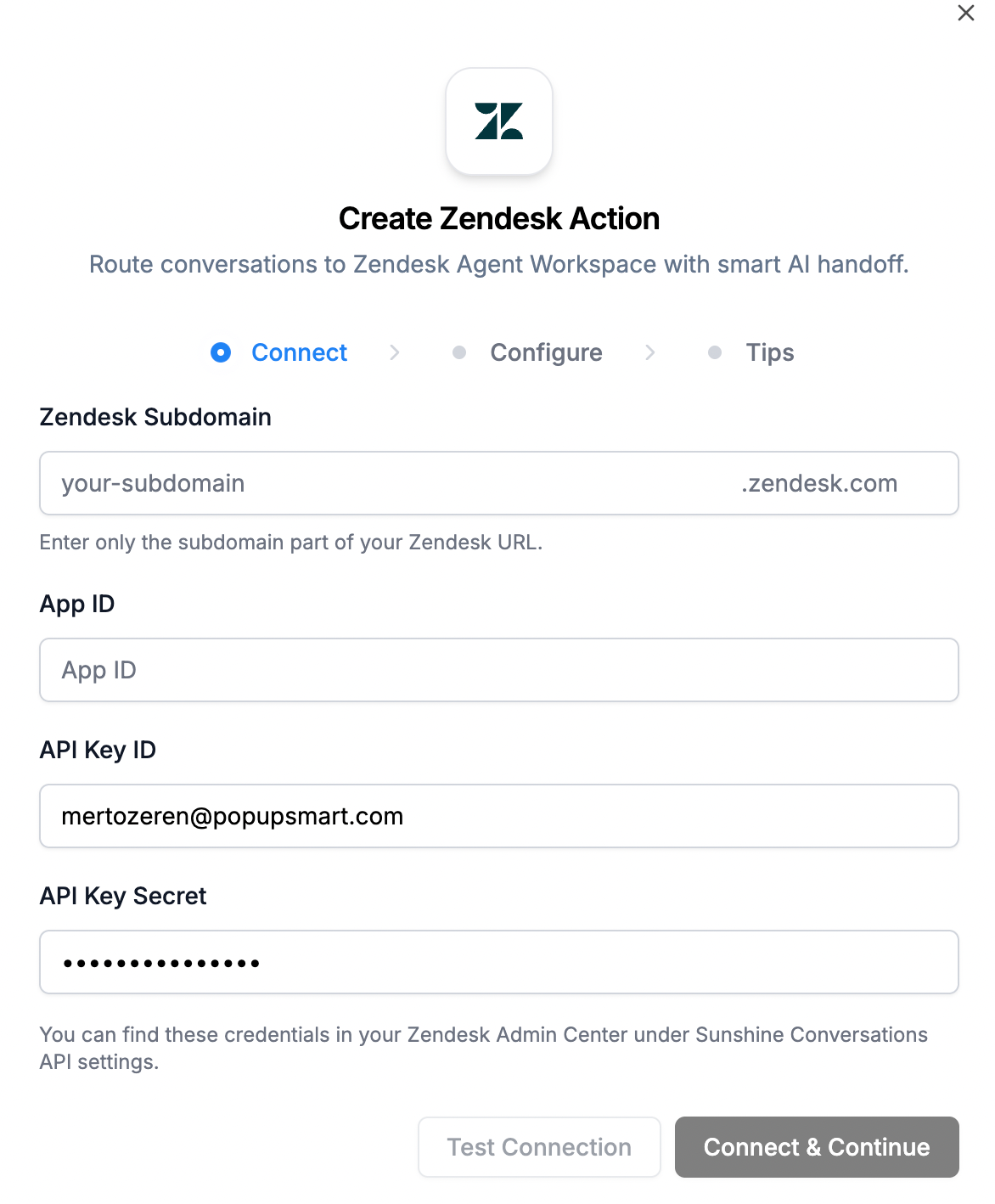
You’ll see the Connect step with these fields:
- Zendesk Subdomain
Enter only the subdomain portion of your Zendesk URL.
Example: if your URL is acme.zendesk.com, enter acme. - App ID
Your Sunshine Conversations App ID. - API Key ID
The key ID generated in Sunshine Conversations API settings. - API Key Secret
The matching secret (keep this secure).
Click Test Connection (optional), then Connect & Continue.
When successful, you’ll see a “Connected to …zendesk.com” confirmation.
Step 2 — Configure when to hand off (Configure)
In the Configure step, you define the rules that trigger the handoff.
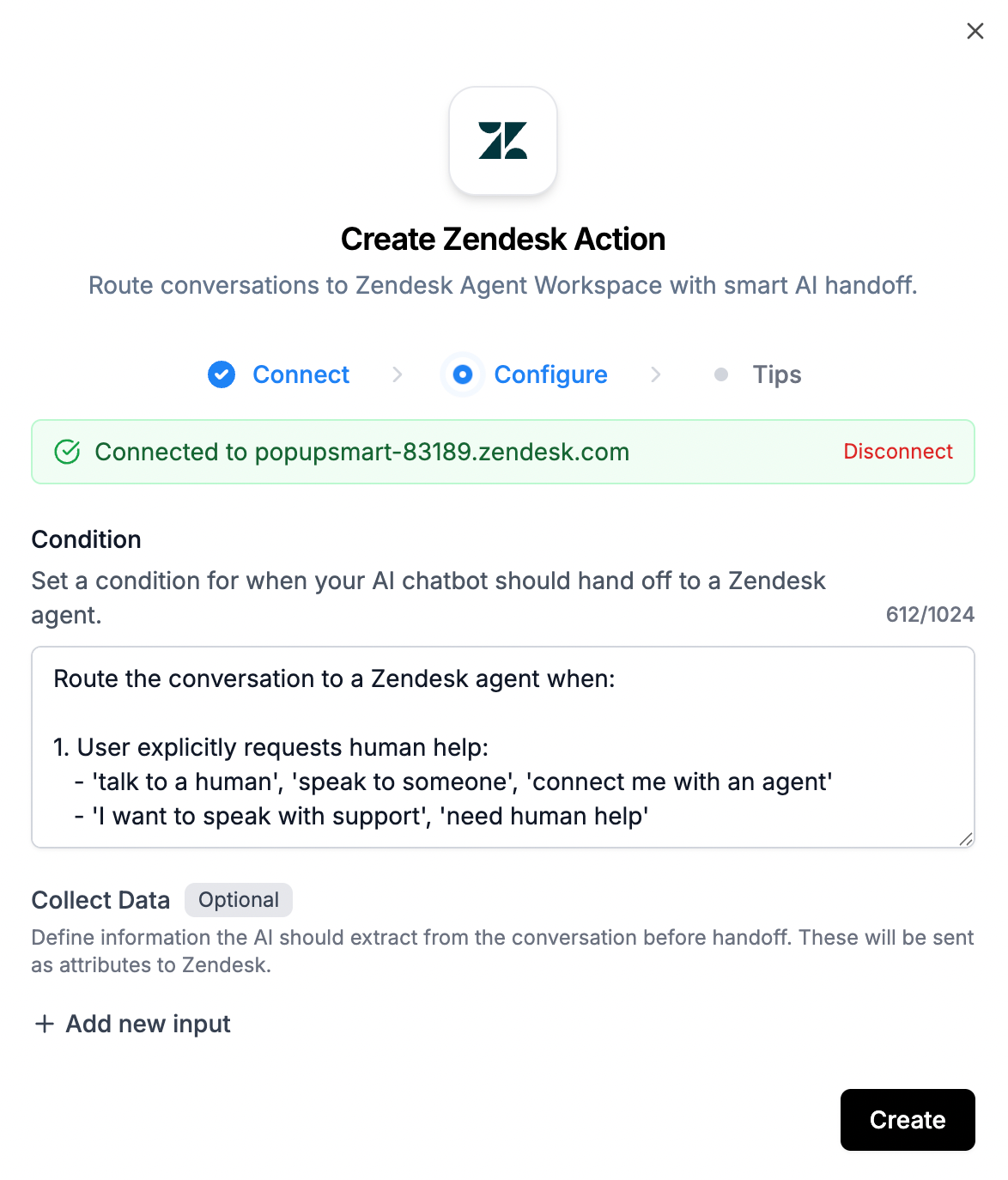
Condition (when to route)
Add rules like:
1) User explicitly requests a human
Examples:
- “talk to a human”
- “speak to someone”
- “connect me with an agent”
- “I want to speak with support”
- “need human help”
2) User shows dissatisfaction or frustration
Examples:
- “this doesn’t help”
- “not helpful”
- “you’re not understanding”
- “I’m not getting the answer”
- “this isn’t working”
- “I’ve tried that already”
Best practice: Keep conditions tight enough to avoid accidental handoffs, but broad enough to catch real intent (human request + frustration usually covers most cases).
Optional — Send context to Zendesk (Collect Data)
In the same Configure step, you can define optional fields to extract from the chat and send to Zendesk as attributes.
Examples you might add:
- name — Visitor name
- email — Visitor email
- accountId — Internal account identifier
- orderId — Order number mentioned in chat
- issueType — Billing / technical / shipping
- summary — Short AI-generated summary of the problem
These fields help agents start faster without asking the visitor to repeat themselves.
Step 3 — Follow Zendesk workspace tips (Tips)
The Tips step highlights two common Zendesk settings to confirm:
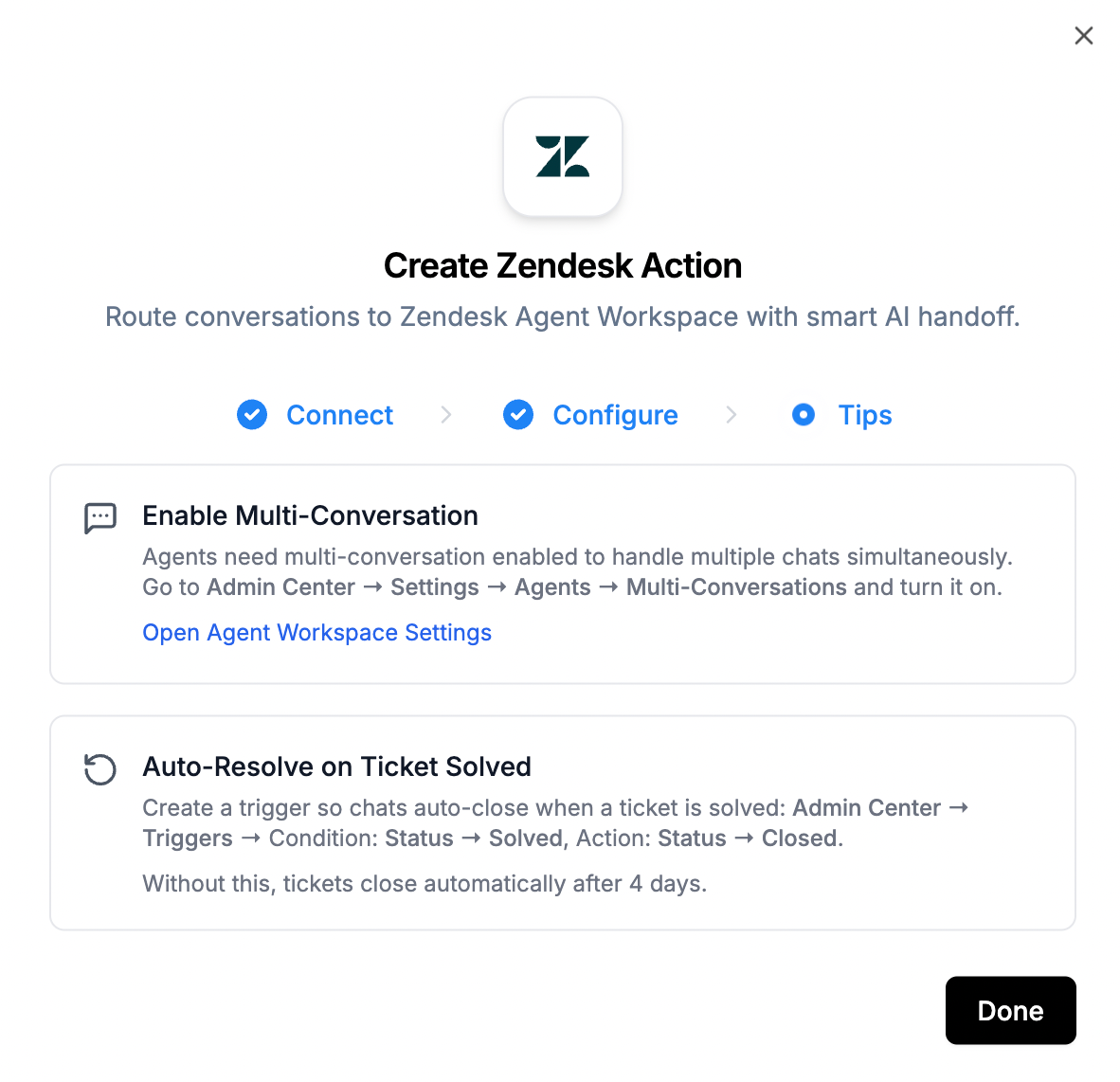
Enable Multi-Conversation
Agents often need Multi-Conversation enabled to handle multiple chats smoothly.
Path (Zendesk):
Admin Center → Settings → Agents → Multi-Conversations (turn it on)
Auto-resolve behavior (recommended)
To ensure chats close cleanly when a ticket is solved, create a Zendesk trigger:
- Condition: Ticket status → Solved
- Action: Ticket status → Closed
Without this, Zendesk may close tickets automatically after a default period (often several days), which can delay “fully closed” behavior in some setups.
What happens during a handoff (end-to-end flow)
- Visitor chats with LiveChatAI in your site widget.
- The configured condition is met (e.g., “I want a human”).
- LiveChatAI triggers the Zendesk AI Action.
- A Zendesk conversation/ticket is created via Sunshine Conversations API.
- AI steps off (stops replying).
- A human Zendesk agent replies in real time from Zendesk Agent Workspace.
- Visitor continues chatting in the same LiveChatAI widget.
- When the agent ends/closes the conversation in Zendesk, it is closed in LiveChatAI as well.
FAQ
Does the visitor need a Zendesk login?
No. The visitor continues in your LiveChatAI widget; Zendesk is used on the agent side.
Will the visitor notice a change during handoff?
They’ll keep the same widget experience. The main difference is responses come from a human agent instead of the AI.
Can we send conversation context to Zendesk?
Yes, use Collect Data to pass structured attributes (like email, order ID, and issue type).