Import Zendesk Tickets into LiveChatAI
Import solved Zendesk tickets and add their content to your chatbot’s knowledge base as Q&A pairs.
Connect Zendesk
- Open your chatbot in LiveChatAI.
- Go to Data Sources and click Add Source.
- Select Zendesk.
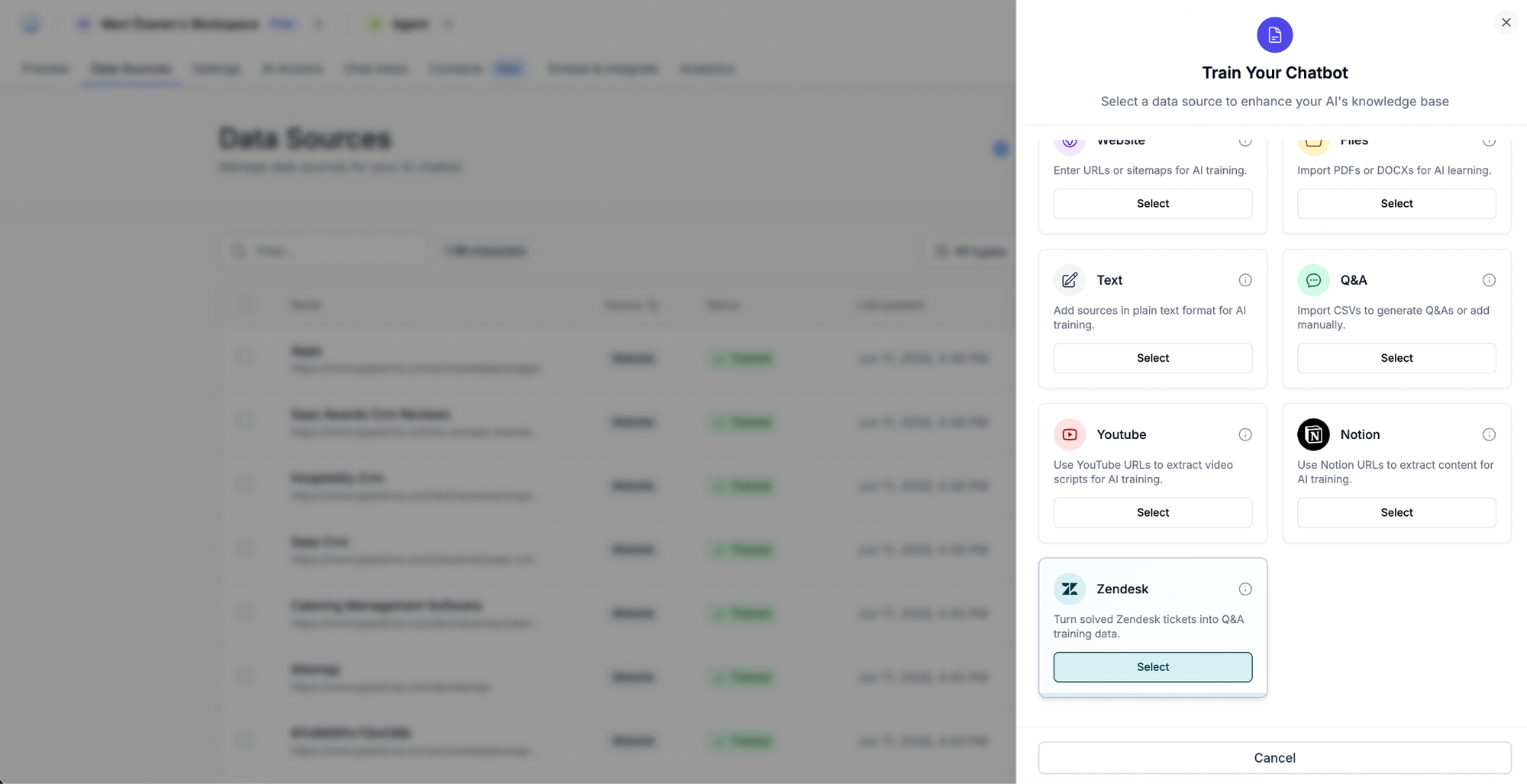
- Connect and authorize your Zendesk account.
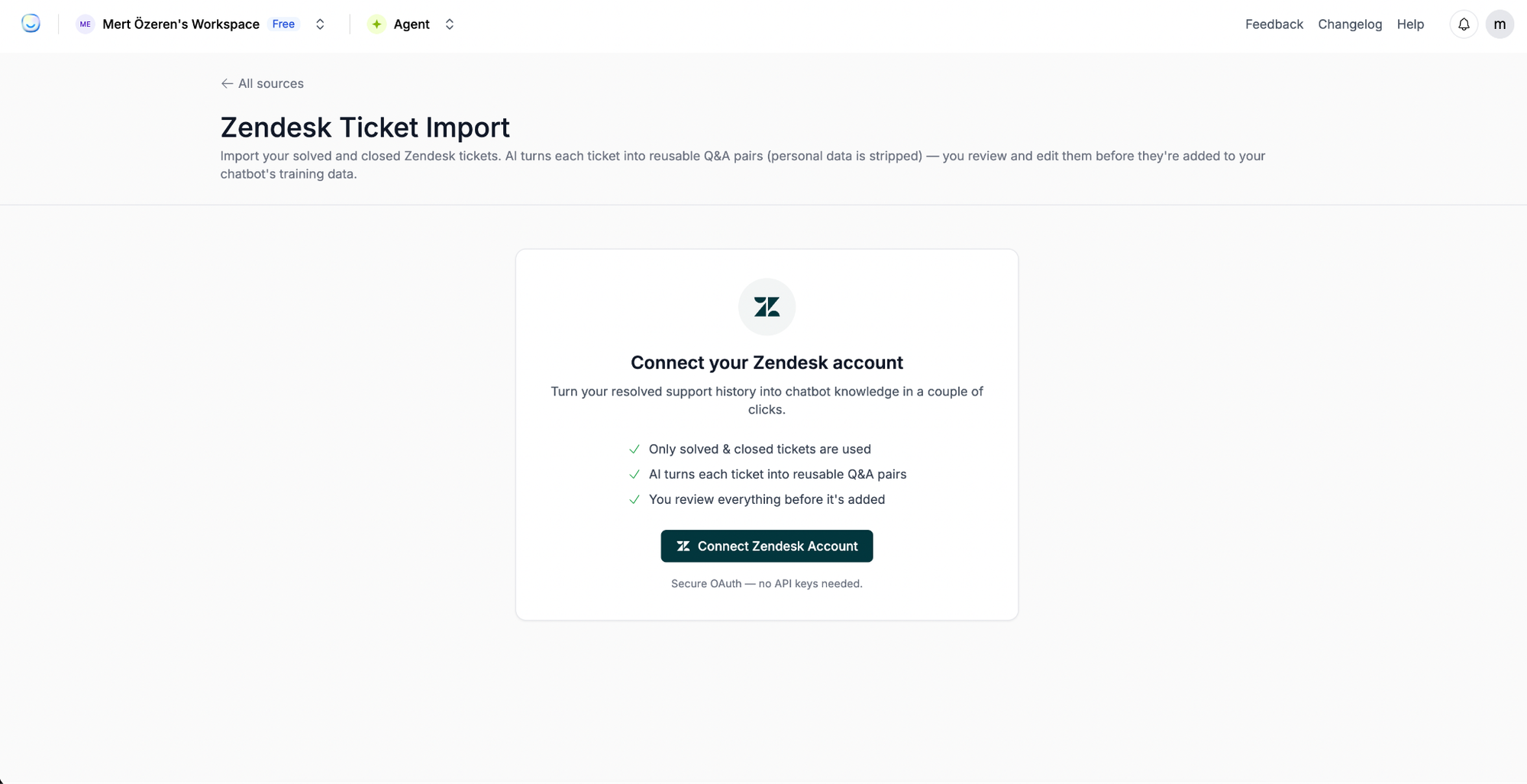
- Select the solved tickets you want to import.
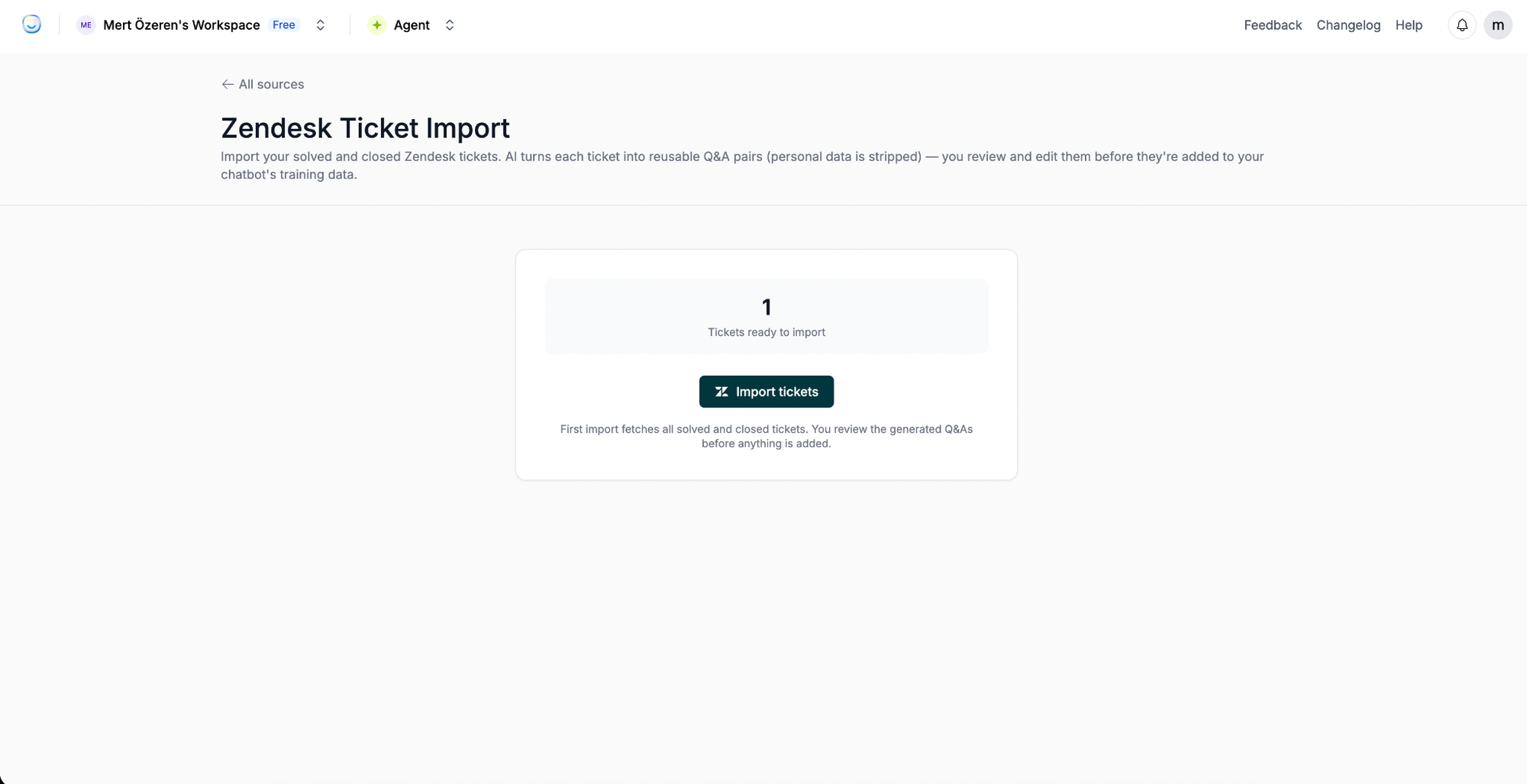
- Start the import.
After the Import
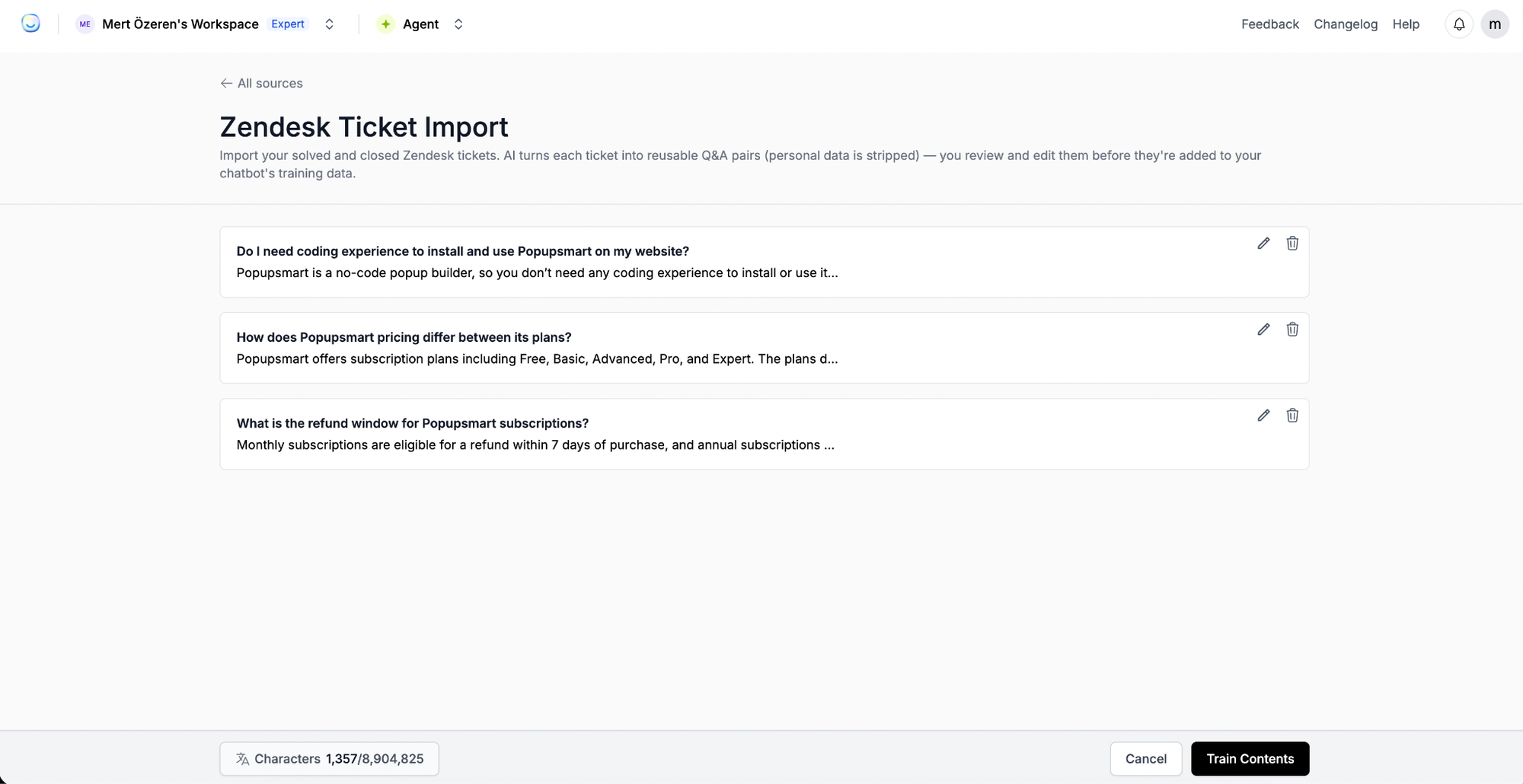
LiveChatAI processes the selected tickets, extracts the relevant questions and answers, and adds them to your chatbot’s knowledge base as Q&A pairs.
Once processing is complete:
- Check the import status under Data Sources.
- Review the generated Q&A pairs.
- Test your chatbot with related questions.
Tip: Import tickets with clear customer questions and accurate resolutions. Avoid incomplete, outdated, or sensitive conversations.
Manage the Zendesk Integration
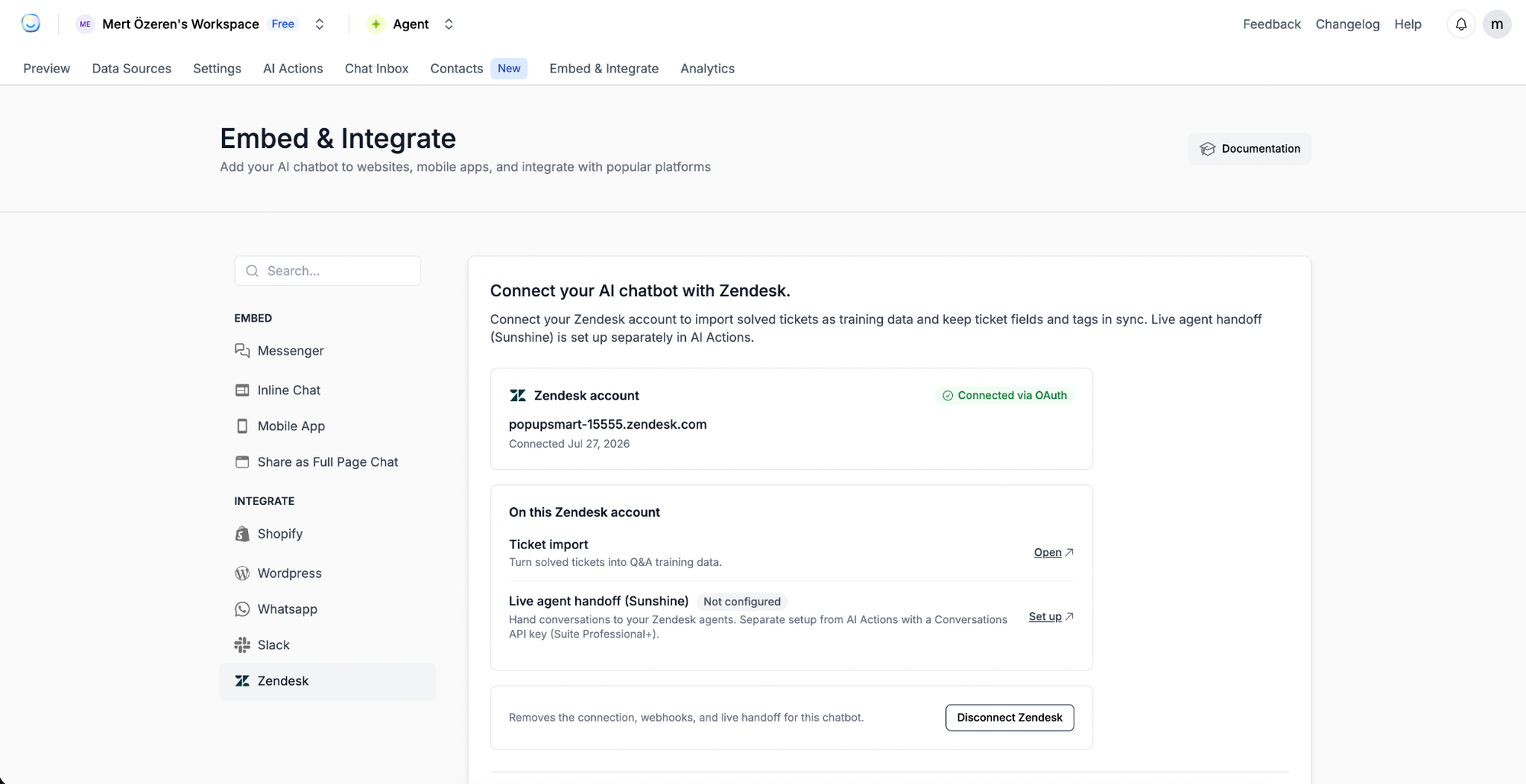
Go to Embed & Integrate → Zendesk to manage the connection. From this page, you can check the OAuth connection status, open the Ticket import settings, or disconnect the Zendesk account.
Note: Live agent handoff is configured separately under AI Actions.
Troubleshooting
Connection failed Check your Zendesk permissions and reconnect your account.
No tickets found Make sure the tickets are marked as solved and accessible to the connected Zendesk user.
Import is still processing Large imports may take longer. Wait a few minutes and refresh the page.