Embed Inline Chat on a Webpage
You can embed your AI chatbot directly inside any webpage using the Inline Chat option. Unlike traditional floating widgets or full-page views, inline chat appears natively within your page layout—perfect for documentation pages, help centers, onboarding flows, or anywhere contextual support is needed.
Where to Find the Inline Embed Code
- Go to your LiveChatAI dashboard.
- Select the Embed & Integrate tab.
- Locate the Add as Inline Chat section.
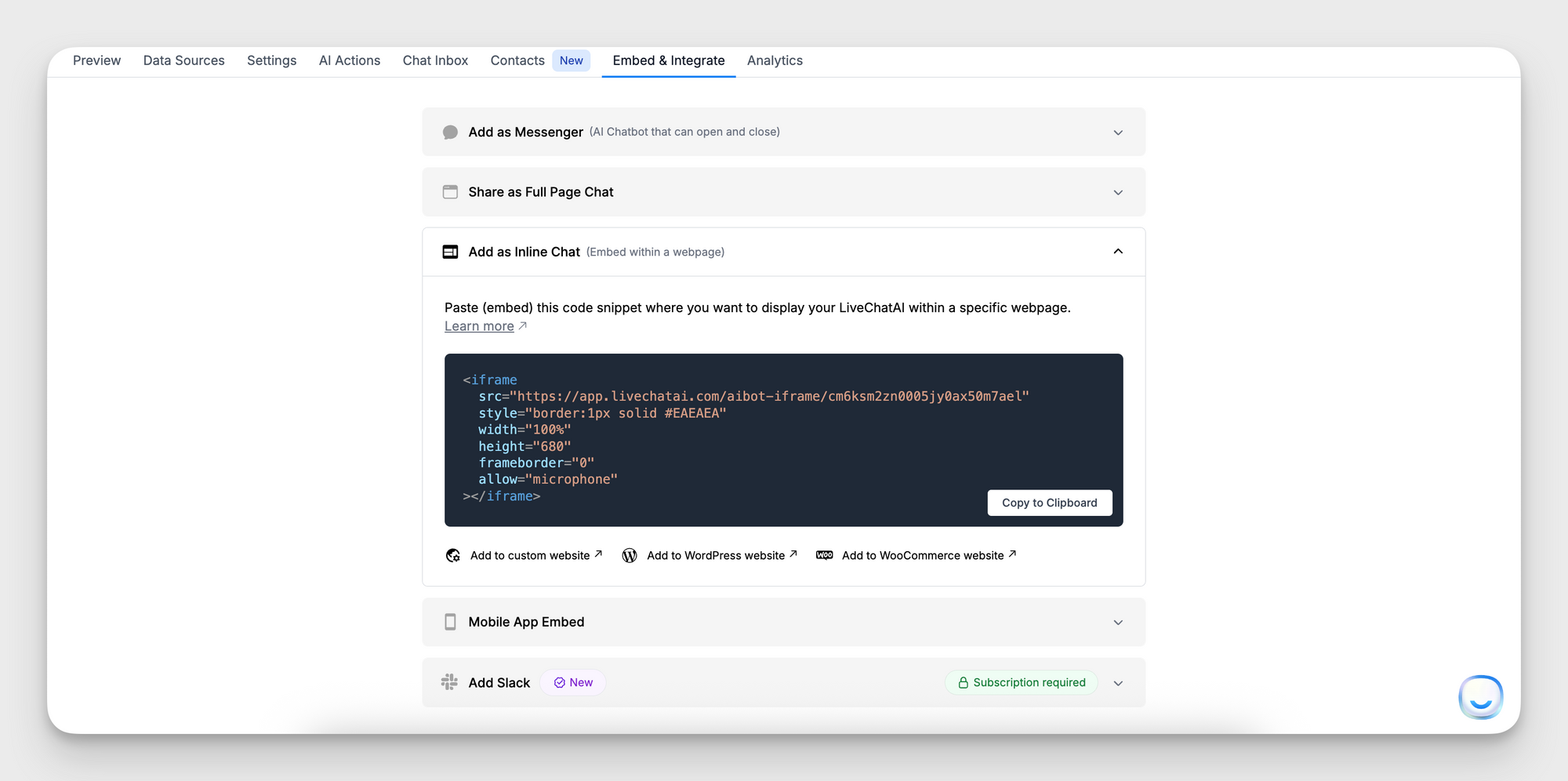
- Expand the section to find the embed code snippet.
This script is auto-generated based on your chatbot and account. Copy the entire embed code.
How to Embed on Your Website
- Paste the copied code into the HTML of your desired webpage.
- Make sure to place the code where you want the chat window to appear—inside a <div>, below an article, or wherever it best fits contextually.
Example:
<div id="chatbot-container"></div>
<script src="https://cdn.livechatai.com/script.js"></script>
<script>
LiveChatAI.init({
  botId: "your-bot-id",
  mode: "inline",
  target: "#chatbot-container"
});
</script>
Replace "your-bot-id" with your actual bot ID. You can find this in your Embed settings.
Use Cases for Inline Chat
- Support embedded in product or pricing pages
- Interactive onboarding experiences
- In-context help within FAQs or documentation
- AI chat assistants in dashboards or web apps
Customization Options
You can fully style your inline chatbot through the Settings > Widget Customization panel in the LiveChatAI dashboard. Appearance settings will also apply to inline embeds, including:
- Colors and fonts
- Avatar visibility
- Conversation flow and message previews
Need help?
If you're unsure how to integrate the code into your page or want help fine-tuning the layout, feel free to reach out at [email protected]. We’re here to assist.